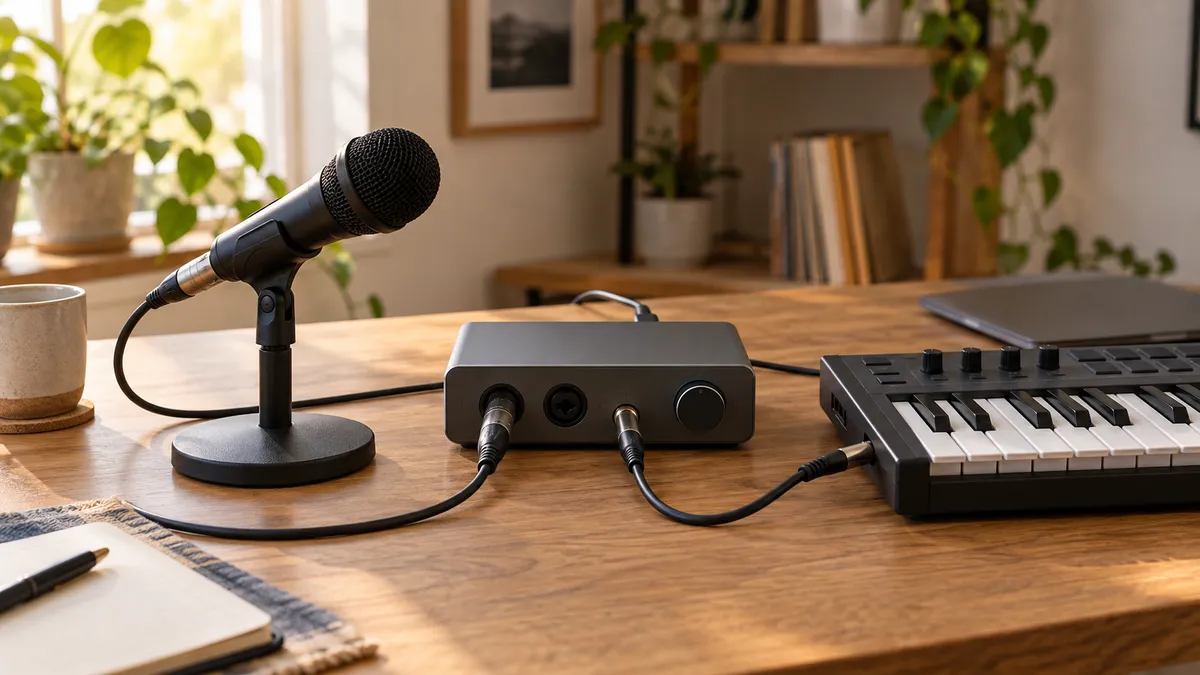
An XLR microphone and a keyboard can sit on the same small desk while needing two very different paths. Start by asking whether the keyboard will play sounds in your computer or whether you need to record the keyboard’s own sound. That answer tells you whether to prioritize MIDI connections, audio inputs, or both.
For a microphone plus a MIDI controller, compare the keyboard’s connection and power requirement before the interface’s headline feature list. The MOTU M2 gives you input and output meters, the Arturia MiniFuse 2 adds a USB hub for a suitable low-power controller, and the original Universal Audio Volt 2 lets you switch direct monitoring among mono, stereo, and off. Those differences make more sense after you map the signals on your desk.
Decide whether the keyboard sends MIDI or audio
MIDI is performance information: notes, timing, and controls sent to software or another MIDI device. A keyboard with five-pin MIDI output can connect to an interface’s MIDI input; Universal Audio documents that path for the Volt 2. A USB MIDI controller can instead connect directly to the computer, leaving the audio interface to handle the microphone. Universal Audio’s Volt 2 manual shows the MIDI connection separately from its audio inputs.
Recording the keyboard’s own sounds is a different job. Use its left and right audio outputs, then count them as two audio signals. The M2 manual describes its two combo inputs for microphone, instrument, and line-level sources. One microphone plus a stereo keyboard needs three simultaneous inputs if you want each signal captured separately, so a two-input interface calls for a different arrangement or more inputs.
That count prevents a common wrong turn: a MIDI port does not add an audio input. Write down the keyboard’s actual outputs before ordering—USB MIDI, five-pin MIDI, mono audio, or left/right audio—and then add the microphone and anything else you intend to record at once.
Match the two-input limit to the session you actually make
Two combo inputs are enough for many small desks, but only when the session has two audio signals or fewer. An XLR microphone in input 1 and a mono keyboard output in input 2 is one workable pattern. A USB or five-pin MIDI controller that only plays a software instrument does not consume either audio input, because its sound is generated and returned by the computer instead.
The plan changes when the keyboard has its own sounds. A stereo keyboard commonly uses a left and a right output, which fill both inputs by themselves. If you also need the microphone in that same take, decide in advance what gives: record the keyboard in mono, record the parts separately, mix the keyboard to a single output before the interface, or choose an interface with more simultaneous inputs. There is no cable adapter that turns two physical input channels into three independently recorded channels.
That distinction also affects a direct-monitor choice. A singer tracking to a software instrument may want the microphone monitored directly while the computer supplies the instrument playback. A player recording a stereo keyboard may instead want the two interface inputs kept as a left/right pair. Start with the track count you need to make, not the number of instruments visible on the desk.
Check the power and monitoring path before the first session
A USB controller may be powered by the computer, by its own adapter, or—where its documented requirement fits—by the MiniFuse 2 hub. Treat that as a power question separate from MIDI compatibility. A controller can communicate over USB yet still need more startup current than the hub can provide. If the controller maker does not state its requirement clearly, use the controller’s normal power method instead of treating the hub as a guess.
Headphone monitoring deserves the same short check. Connect headphones to the interface, set a modest level, and decide whether you will listen to the live input directly, through recording software, or through both. Direct monitoring can avoid routing the live microphone through software for listening, while software monitoring may be needed for a plug-in or an effect you specifically want to hear. Hearing the same input through both paths can sound like a doubled signal, so pick one path for that input.
Before a recording session, label the cable route in plain terms: microphone to input 1; keyboard audio, if any, to input 2 or inputs 1 and 2; keyboard MIDI to the computer or MIDI In; headphones to the headphone output. A one-minute sketch makes it much easier to see whether a proposed two-input interface fits the session before any gain, monitoring, or software setting gets involved.
Compare the connection detail that changes the desk
MOTU M2: see levels while you set up the microphone
The M2 has two XLR/TRS combo inputs and an LCD that displays input and output levels. That gives you a straightforward way to watch the microphone level and computer playback while setting a gain. Its headphone level has its own control, separate from the monitor-output level. The M Series User Guide also documents MIDI ports for external gear.
Each input has a direct-monitor button. Holding a button enables stereo monitoring across the two inputs, which can be useful when the two inputs carry a left and right source. It does not create a third input, so keep the microphone-plus-stereo-keyboard count in view.
Arturia MiniFuse 2: reserve the hub for the right controller
The MiniFuse 2 combines five-pin MIDI input and output with a USB-A hub. The hub is separate from the USB connection to the computer, so it can be helpful when a compatible controller would otherwise take another computer port. Arturia’s connection guide identifies both kinds of keyboard connection.
Its hub is rated for up to 250 mA at 5 V. That figure belongs beside the controller’s stated power requirement, not beside an assumption based on the plug shape. Arturia also notes that startup demand can matter even when a device’s normal consumption is low; if the requirement is unclear, check with the controller maker before relying on the hub for power. Arturia’s MiniFuse 2 USB hub guide explains the limit.
Universal Audio Volt 2: choose the direct-monitor mode deliberately
The original Volt 2 has two audio inputs and MIDI In/Out. Its Direct Monitor button cycles through mono, stereo, and off. Mono puts the input signals in the center; stereo places input 1 left and input 2 right. That is a practical control when you alternate between tracking one microphone and monitoring a stereo source.
If direct monitoring is on, turn off software monitoring for the same microphone or audio-input track so you do not hear that input twice. Keep software-instrument playback on: the direct-monitor control applies to the interface inputs, while computer playback remains audible. The Volt 2 hardware manual documents those modes for the original Volt 2.
Make a four-line connection list before ordering
Put the actual connectors on one list: the microphone’s XLR cable, the keyboard’s MIDI or audio output, the computer connection, and the headphone plug. On a MiniFuse hub setup, add the controller’s stated current requirement. On an M2 or Volt 2, add the number of audio signals you need at the same time.
Then check the product name in the selected listing. The MiniFuse 2 and original Volt 2 discussed here are not the MiniFuse OTG or Volt Gen 2 variants; a newer-looking listing can carry different connections or controls.
The short answer for each setup
Choose the M2 when clear input and output metering and separate headphone/monitor controls fit a two-input desk. Choose the MiniFuse 2 when its MIDI ports and documented 250 mA, 5 V USB hub suit a controller whose power requirement you have checked. Choose the original Volt 2 when switching direct monitoring among mono, stereo, and off is the control you expect to use.
All three work best when the connection plan comes first. A MIDI controller, an XLR microphone, and a pair of headphones can be a simple two-input setup. A keyboard whose own stereo sound must be recorded alongside the microphone needs a different input count.
Evidence boundary
This is a connection-based comparison using manufacturer documentation and current listing availability. It does not rank sound quality or claim hands-on latency, reliability, or computer-compatibility testing; the result also depends on the keyboard, computer, software instruments, and audio settings you use.
Sources
- MOTU, M Series User Guide.
- Arturia, MiniFuse 2 connections.
- Arturia, MiniFuse 2 USB hub.
- Universal Audio, Volt 2 hardware manual.