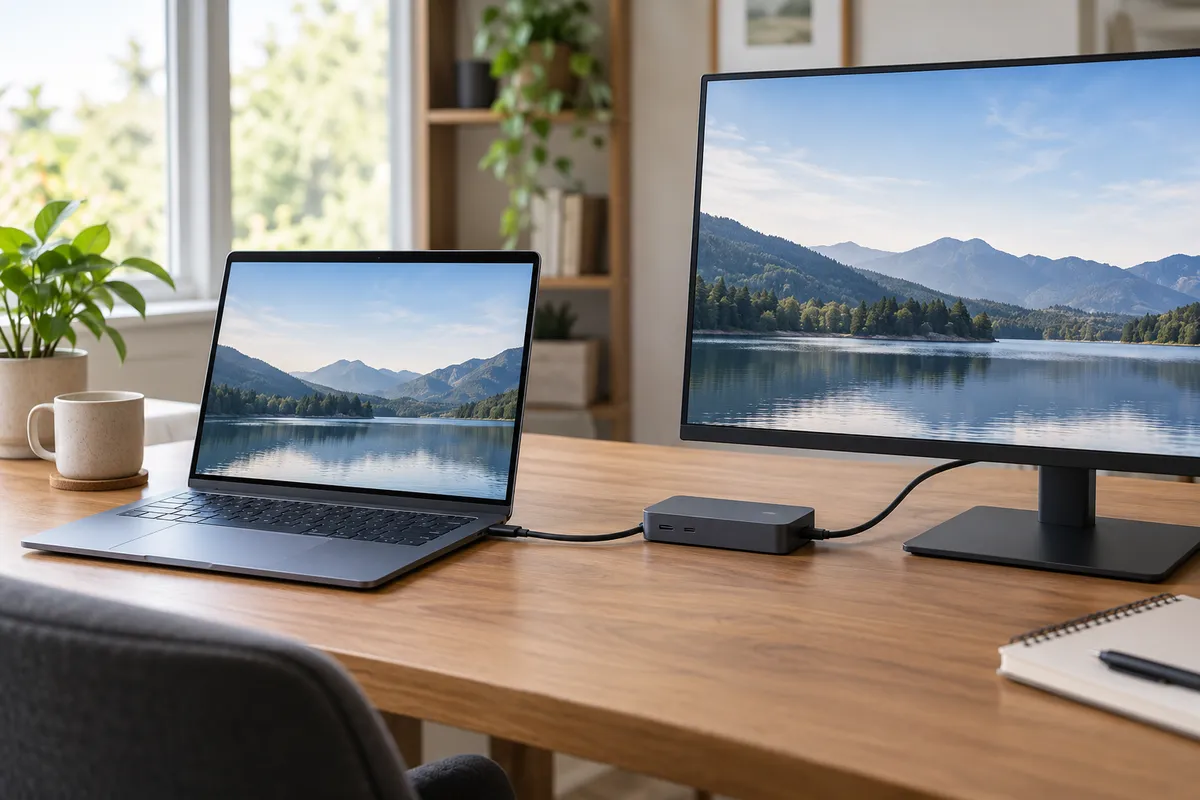
A USB-C alert can make a working desk setup suddenly feel suspect: the cable fit, the dock powered on, and then Windows says the charger is slow or the display connection is limited. Pause before buying a replacement. Record the notification, then check the part of the connection Windows names: the power path, the port, the direct connection, or the reported device error.
The wording matters because Windows groups several different conditions under USB-C notifications. A warning about a charger is not the same decision as a notification about USB4, a display mode, or a device Windows does not recognize.
Start by saving the alert text
Take a screenshot or write down the notification before disconnecting anything. Microsoft’s Windows support page lists alerts including Slow charger, PC isn’t charging, USB device not recognized, Display connection might be limited, Use different USB port, and limited-functionality messages for USB4 and Thunderbolt devices.
The alert text narrows the next check. It also prevents a common dead end: treating every message as proof that the cable is bad. Windows may be pointing to a capability of the PC port, the connection mode, the power available to a device, or an error reported by a connected device.
For power alerts, check the documented power path
If the message says Slow charger or PC isn’t charging, start with the charger and cable intended for the PC, and confirm that the charger is connected to the laptop’s USB-C charging port. Microsoft’s guidance treats the PC, charger, and cable as a path: all three need to support the power level the PC requires for faster charging.
Keep a dock or hub out of the first comparison when the message appears. A direct connection with the documented charger and cable is a cleaner way to see whether the alert still occurs. It does not diagnose a component, but it distinguishes the simple documented connection from the longer desk setup.
The alert USB device might need more power is a different branch. Microsoft describes it as a case where the PC might not provide enough power to the connected USB device. Follow the message’s direction to use external power for that device or try another PC if that is practical for your setup; do not treat it as a general instruction to replace every cable in the chain.
For port and mode alerts, check the connection the message names
Limited-functionality notifications are about the connection mode Windows expects. Microsoft Learn separates USB4, Thunderbolt, DisplayPort or MHL, and unrecognized alternate modes. Their visible messages point back to whether the PC supports that device or mode, and in one Use different USB port case, whether another port on the same PC supports USB4.
Use your laptop maker’s port documentation to identify the port in use. Then simplify only as far as the documentation permits: connect the device or dock directly to the PC, or move it to the supported port when the notification calls for a different port. For a display message, check the PC’s documented support for the display connection and the documentation for the display or adapter.
This is not the same question as whether a USB-C plug fits. USB-C describes the connector shape; the alert may concern USB4, Thunderbolt, or a display connection mode that the selected PC port does not support. If the direct, documented path produces the same mode warning, the notification gives you a better basis for seeking model-specific support than a guess based on cable appearance.
Use Device Manager only for a recognition or driver-related message
When Windows says USB device not recognized, Microsoft directs you to find the Device Manager error code and follow the resolution for that code. In Device Manager, locate the device with the problem, open its Properties, and look in Device status for the error code.
The error code is the detail to retain. Microsoft’s error-code reference says that the listed resolutions are code-specific and that some possible codes are not covered there. If the code is not listed, the next support source is the hardware device vendor or Microsoft Support—not a generic cable replacement.
Avoid applying a driver step intended for one code to every USB-C issue. A recognition message concerns the connected device or its driver path; it does not establish that a charger, dock, display, or another cable in the setup has failed.
Make one change at a time
Once you have the alert category, change one documented variable and note the result. For example, use the supported PC port named in the laptop documentation, or compare the direct connection with the usual dock path. Repeating the alert text alongside the one change makes a later manufacturer-support conversation much clearer.
Do not stack several changes at once. Replacing the cable, moving ports, adding an adapter, and changing system settings together can remove the alert without showing which condition changed. It can also turn a message about one mode or port into an expensive guessing exercise.
When replacing hardware makes sense
A replacement is worth considering only after the documentation identifies a missing capability or a product-specific support path calls for a compatible accessory. For example, a limited USB4 or display-mode notification can lead you to verify the capability of the named PC port and connected device before choosing any new hardware.
If the alert persists on the documented direct connection, preserve the message, device model, PC model, port used, and any Device Manager code. Those facts give the manufacturer’s support team more to work with than a description such as “the USB-C cable stopped working.”
Evidence boundary
Windows notifications can classify documented power, port-capability, mode, and device-recognition conditions. They cannot diagnose the condition of one cable, charger, dock, port, battery, driver, display, or laptop. Use the current documentation for the models in your connection before making a repair or purchase decision.
Frequently asked questions
Does “Use different USB port” mean the cable is defective?
No. Microsoft documents a USB4 case where the PC supports USB4 on other ports but not the port in use. Check the laptop’s port documentation and the alert text before concluding that the cable needs replacement.
What should I record when Windows says a USB device is not recognized?
Record the Windows alert and the Device Manager error code shown in the device’s Properties under Device status. Microsoft’s support guidance uses that code to identify the matching troubleshooting path.
Why does a display alert need a different check from a charging alert?
Windows separates power notifications from mode notifications. A display alert concerns the supported display connection path, while a charging alert concerns the PC, charger, cable, and power level required by the PC.
Sources
- Microsoft Support, Fix USB-C problems in Windows.
- Microsoft Learn, Windows USB Type-C troubleshooting notifications.
- Microsoft Support, Error codes in Device Manager in Windows.