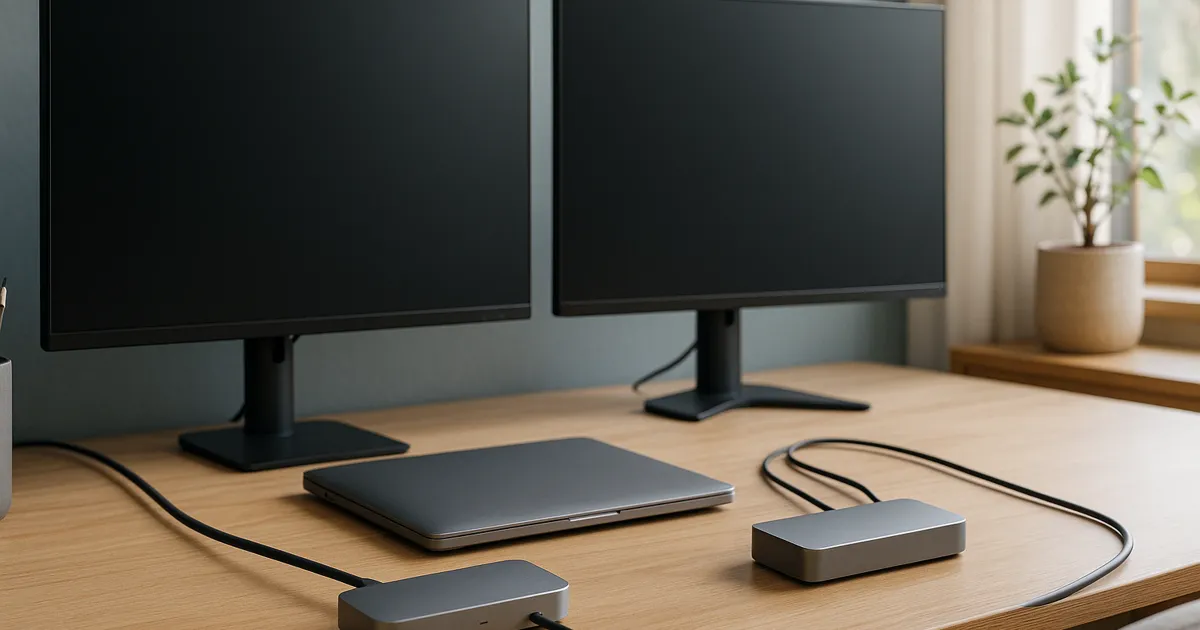
A Thunderbolt dock is not automatically a better dual-monitor dock than a USB-C dock. It is the better starting point only when the laptop, operating system, monitors, cables, and dock documentation all support the display layout you want. A USB-C dock can be enough when the host supplies the needed DisplayPort Alt Mode bandwidth and display streams; a DisplayLink dock can add another route, but it adds software to the decision.
Quick answer
| If your laptop has… | Start with… | Check before buying |
|---|---|---|
| Thunderbolt or compatible USB4 and a documented two-display layout | A Thunderbolt dock | The maker’s exact host, operating-system, cable, and monitor table |
| USB-C with DisplayPort Alt Mode and a documented MST layout | A USB-C/MST dock | Whether the operating system and GPU permit the intended two displays |
| Too few native display streams but permission to install a driver | A DisplayLink-based dock | Employer policy, driver support, and the features that work on that output path |
For an exact-model comparison after you identify the host path, see our dual-monitor USB-C dock guide. The manufacturer-documented examples below are technical references, not universal picks; use them only after the compatibility checks in this page.
| Example | Best use | Skip if |
|---|---|---|
| CalDigit TS5 Plus | Your laptop documentation names a supported Thunderbolt or USB4 path and you need a dock built around that class of host | The laptop is ordinary USB-C only, or its external-display limit is lower than the desk plan |
| Plugable TBT4-UDZ | Its published matrix includes the exact host and intended monitor arrangement | The matrix does not cover your host, or your managed device cannot accept the required setup |
Start with the laptop, not the connector
USB-C describes the plug shape. It does not, by itself, tell you whether the port carries Thunderbolt, USB4, DisplayPort Alt Mode, enough display bandwidth, or more than one external display stream. Find the laptop’s exact model documentation and write down its external-display limit before comparing dock ports.
That check matters because a dock exposes and converts the connections supplied by the computer; it does not turn an unsupported host into a native two-monitor machine. The answer can also change with the operating system, graphics configuration, lid state on some laptops, and the resolution and refresh rate selected for each monitor.
When a Thunderbolt dock is the right path
Choose Thunderbolt when the laptop maker and dock maker document a compatible Thunderbolt or USB4 connection and the display table covers the layout you plan to use. This is commonly the lower-software-dependency route for a desk that needs native display signals plus other high-bandwidth connections.
It is not a compatibility shortcut. A Thunderbolt-marked dock still depends on the host’s external-display allowance, the active display ports, cable type, adapters, monitor inputs, and operating system. Treat a published display table as a ceiling for the listed conditions, not as a promise that every monitor pair will run at that mode.
The CalDigit TS5 Plus is a manufacturer-documented example for newer supported host paths; the Plugable TBT4-UDZ is a manufacturer-documented example where the host-and-display matrix should drive the decision. Confirm a technical match in the relevant manufacturer documentation rather than selecting either model from the connector label alone.
When a USB-C/MST dock can be enough
A USB-C dock can run two monitors when the laptop supplies a suitable DisplayPort Alt Mode path, the GPU and operating system permit the displays, and the dock’s Multi-Stream Transport arrangement matches the intended outputs. This can be a sensible fit when you do not need the broader connection budget of a Thunderbolt setup.
The important constraint is that MST is part of a complete chain, not a logo on the dock. Check the laptop’s display documentation, the dock maker’s matrix, and the monitor connection plan. On macOS, do not assume an MST-style Windows arrangement will create two independent native displays; verify the exact Mac, dock, and display path with the manufacturers before buying.
When DisplayLink solves a different problem
DisplayLink sends display data through USB and reconstructs the output with software. That can help a compatible computer reach a desk layout that exceeds its native display-stream path, but it is not the same as native Thunderbolt or DisplayPort video.
Use this route only when the driver is acceptable on the real work device. A managed laptop may restrict driver installation, and some display features can differ from a native GPU-connected monitor. If color-managed work, specialized display features, or a no-driver setup is non-negotiable, begin with a documented native path instead.
Map the complete two-monitor path
Write down each monitor’s intended resolution and refresh rate, then trace laptop → dock → cable or adapter → monitor input. An adapter can be the limiting part even when the dock and laptop look capable on paper. Two physical video sockets can also share a transport path, so counting connectors is not enough.
For a text-focused desk, our 4K monitor guide explains why the signal path, operating-system scaling, and monitor input mode belong in the same check. Confirm the selected mode in the computer’s display settings and the monitor’s information panel during the return period.
macOS and managed-work-laptop checks
Do not use the USB-C port or a chip-family nickname as a stand-in for an exact Mac display limit. Look up the specific laptop model, operating-system version, dock, and intended monitor connection. Some arrangements also depend on whether the laptop is open or closed.
For a work-managed Windows or macOS laptop, add one practical question: can you install and maintain the required driver or dock utility? That question is especially important for DisplayLink, but firmware tools, security settings, and device-management policy can affect other docks as well. Test with the account and docking sequence you will actually use.
A short pre-purchase checklist
- Identify the laptop’s exact Thunderbolt, USB4, or DisplayPort Alt Mode support.
- Confirm how many external displays the laptop and operating system permit.
- Match both monitor modes to the dock maker’s host-and-port table.
- Verify every cable and adapter in the path supports the required mode.
- Decide whether a DisplayLink driver is acceptable on the work computer.
- Recheck the current product configuration and return terms with the seller before ordering.
Your keyboard and other peripherals belong in this same map. Our mechanical versus low-profile keyboard guide covers the separate device-switching and desk-fit tradeoffs once the laptop’s dock path is settled.
Frequently asked questions
Can any USB-C dock run two monitors?
No. The host needs the required display path and external-display support, and the dock, operating system, cables, adapters, monitor inputs, and chosen modes must all fit that path. The USB-C connector alone does not establish a dual-monitor result.
Is Thunderbolt always better than USB-C for dual monitors?
No. Thunderbolt can provide a stronger starting point for a supported high-bandwidth setup, but the laptop’s display limit and the exact dock-and-monitor matrix still decide the result. A USB-C/MST dock can be sufficient when its documented host path matches the desk.
Should I choose DisplayLink for a managed work laptop?
Only if the employer permits the driver and the dock maker documents the intended operating-system path. If software installation is restricted, start with a native display route that the laptop and dock makers document for the exact host.
Evidence boundary
This is a documentation-led compatibility comparison, not a personal test. Manufacturer compatibility tables establish only the specific host, dock, operating-system, cable, adapter, and monitor conditions they name. We do not claim universal two-monitor compatibility, long-term reliability, sustained throughput, charging behavior, or support outcomes.
Sources
- CalDigit TS5 Plus specifications and manual: https://www.caldigit.com/thunderbolt-5-dock-ts5-plus/ and https://downloads.caldigit.com/TS5Plus/CalDigit_TS5_Plus_Manual_EN.pdf
- Plugable TBT4-UDZ specifications and support information: https://plugable.com/products/tbt4-udz and https://kb.plugable.com/docking-stations/does-my-tbt4-udz-need-updated-firmware
- Dell WD22TB4 display-resolution table: https://www.dell.com/support/manuals/en-us/wd22tb4-dock/dell_wd22tb4_userguide/display-resolution-table
- Plugable DisplayLink dock documentation: https://plugable.com/products/ud-6950pdz