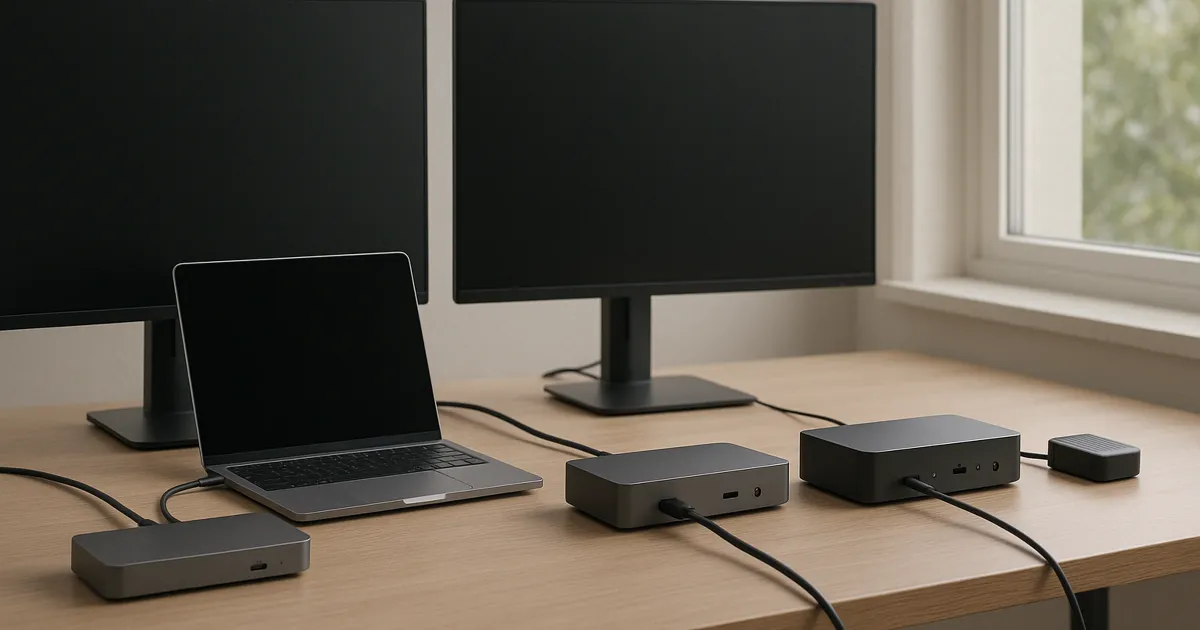
If your Thunderbolt 4 dock already drives the documented display layout, storage, networking, and charging path you use, replacing it with a Thunderbolt 5 dock is not automatically useful. Thunderbolt 5 is worth investigating only when the exact laptop supports it and a documented bottleneck—such as a higher-bandwidth display plan, external storage, or networking—can use the new path.
Quick decision
| Your situation | Sensible next step | Verify first |
|---|---|---|
| Your current Thunderbolt 4 desk works at the modes you need | Keep the dock | That the need is real rather than a connector-label upgrade |
| You are planning a new laptop that documents Thunderbolt 5 | Investigate a Thunderbolt 5 path | The laptop, dock, monitor, cable, and adapter documentation together |
| You need more display, storage, or network capability but the host is unclear | Stop and identify the exact host | Port generation, controller support, external-display limit, and operating-system conditions |
Intel describes Thunderbolt 5 as an 80 Gbps bidirectional standard, with an optional display-oriented bandwidth boost up to 120 Gbps. Those are standard-level capabilities, not a promise that every laptop, dock, monitor, cable, or adapter will reach a particular result. A Thunderbolt 5 dock can still operate with older Thunderbolt or USB hosts, but backward compatibility is not full-performance equivalence.
For the separate question of whether your computer needs Thunderbolt, USB-C/MST, or DisplayLink for a dual-monitor setup, start with our Thunderbolt dock versus USB-C dock guide. Once the host path is settled, use the dual-monitor dock guide for model selection.
What changes—and what does not
Thunderbolt 5 raises the available connection budget for a supported system. That can matter when one host must serve demanding display, external-storage, and networking connections at the same time. It does not change the laptop’s documented external-display limit, make an ordinary USB-C port into Thunderbolt 5, or eliminate constraints in a monitor, cable, adapter, operating system, or managed-device policy.
Think in complete paths rather than dock labels:
- Laptop port and controller → dock input.
- Dock output → cable or adapter → each monitor.
- Dock storage or Ethernet port → the device on the other end.
- Dock power supply → the laptop’s supported charging input.
The narrow question is whether one of those paths is constrained now and whether the specifications for every link document a supported replacement. If the answer is no, keeping a known-working Thunderbolt 4 dock is often the lower-risk choice.
Start with the exact host
Find the laptop’s exact model documentation before comparing docks. Note the stated Thunderbolt or USB4 generation, external-display allowance, display-port conditions, supported charging behavior, and any operating-system or lid-state qualifications. A USB-C-shaped port alone does not answer those questions.
Then check the dock maker’s support material for that host class. A product page can list many ports while still depending on a particular display configuration, cable type, or host capability. Treat documented tables as conditions to verify, not as a universal desk-layout guarantee.
If a managed work computer is involved, include policy in the check. Firmware tools, security settings, device-management policy, and driver restrictions can affect whether a dock setup is practical even when the physical ports appear to match.
When Thunderbolt 4 remains enough
A working Thunderbolt 4 dock remains a sound choice when its documented connection plan already covers your actual peripherals. That commonly includes conventional external displays, USB accessories, Ethernet, and external storage, provided the host, dock, and connected devices agree on the modes in use.
Keep the current dock when:
- The laptop and dock documentation cover the monitor arrangement you use.
- Storage and networking behavior are adequate for the work you actually do.
- The laptop’s charging path is documented and behaves as expected.
- You are not replacing the host with a Thunderbolt 5-capable model.
Do not treat a newer dock as a remedy for an unsupported display layout. For a display-specific check, record each monitor’s resolution and refresh rate, then trace laptop → dock → cable or adapter → monitor input. Our 4K monitor guide explains why the signal path and operating-system settings belong in that check.
When a Thunderbolt 5 path may be worth investigating
Investigate Thunderbolt 5 when the exact host documents that generation and you have a clearly identified capability need that a supported dock path can address. Examples include a new workstation-class laptop combined with a more demanding collection of displays, external storage, or networking equipment. The evidence is in the exact compatibility material, not in the connector name alone.
Before narrowing models, confirm:
- The laptop explicitly documents a Thunderbolt 5 path.
- The dock documents support for the host and the operating system you use.
- The planned monitors, storage, and network devices fit the dock’s published port-sharing rules.
- Each cable and adapter is specified for its role in the chain.
- The laptop’s supported charging input matches the dock and power supply documentation.
For example, a newer Thunderbolt 5 dock and a mature Thunderbolt 4 dock can both be reasonable candidates in their documented host paths. The deciding factor is the supported system plan, not an assumption that the newer generation is universally faster or more compatible at every desk.
Backward compatibility is not a performance match
Compatibility usually means that devices can establish a usable connection under the conditions their documentation names. It does not mean an older host receives all of a newer dock’s bandwidth, display options, networking behavior, or charging capability. The limiting part can be the host, its display streams, a shared port path, or an adapter.
That distinction is especially important when comparing a Thunderbolt 5 dock with a Thunderbolt 4 dock. A newer dock may still be a compatible purchase for an older host, but the host can remain the ceiling. Check the manufacturer documentation for the exact combination before treating compatibility as an upgrade result.
Shopping and setup checks
This page intentionally does not rank docks or link to a purchase destination. The product-choice task belongs in the dual-monitor dock guide after you confirm the host path. When you compare an exact model, check its published port map, host matrix, included power supply, cable requirements, support documentation, current return terms, and the current price on Amazon.
For a storage-heavy desk, the same host-first method applies to the broader external SSD versus NAS guide: identify where the data lives, how it connects, and which device is the limiting part before buying around a port label.
Frequently asked questions
Is a Thunderbolt 5 dock worth it if my Thunderbolt 4 dock works?
Not automatically. Keep the Thunderbolt 4 dock if the documented host, displays, storage, network, and charging plan already meets your needs. Investigate Thunderbolt 5 only when a supported new host and a specific connection constraint make the newer path relevant.
Will a Thunderbolt 5 dock give my Thunderbolt 4 laptop Thunderbolt 5 performance?
Do not assume so. A compatible connection can still be limited by the older host and the rest of the chain. Check the laptop and dock documentation for the exact host, operating system, peripherals, and connection modes.
Can I choose a dock by counting ports?
No. Ports may share a transport path, and display or charging behavior can depend on the host, cables, adapters, operating system, and selected modes. Use the exact model’s support material to map the full path.
Should I upgrade for dual monitors alone?
First confirm the laptop’s external-display allowance and the dock maker’s documented display table. A Thunderbolt 5 dock does not by itself create display streams that the host does not support.
Evidence boundary
This is a documentation-led upgrade framework, not a personal test or a promise of compatibility, sustained throughput, display count, charging behavior, reliability, or work outcome. Intel’s standard-level Thunderbolt 5 information and manufacturer materials must be applied to the exact host-and-peripheral combination, not generalized to every desk.
Sources
- Intel, Thunderbolt 5 standard overview and technology brief.
- Plugable, Thunderbolt 5 versus Thunderbolt 4 upgrade guide (manufacturer perspective).
- Tom’s Hardware, Thunderbolt 5 dock roundup (configuration differences, not an all-host compatibility test).